
Google Calendar dashboards for room screens and lobbies, on Apple TV
Google Calendar already knows who has the big conference room at 2 p.m., who is out on Friday, and when the all-hands starts. Dance Party reads the calendars you choose and puts them on an Apple TV dashboard: a room schedule outside the door, an out-of-office list by the kitchen, a countdown on the office display.
- Read-only
- OAuth connection
- Personal or workspace connection
Popular Google Calendar dashboards
What teams running Google Calendar put on the screen, and what you would ask DJ Agent to get it.
Conference room schedule by the door
For anyone looking for a free room
People knock on doors to see if a room is free. A room calendar on a small display outside shows what is on now and what is next, straight from the room's Google Calendar resource.
- Today's bookings on one room calendar, in start-time order
- The meeting happening now and the next one
- Event titles, when the room calendar shares details
Ask DJ Agent“Show today's bookings for the Big Room Google Calendar, highlighting what is on now and what is next.”
Who's out this week
For team leads and the front desk
Most teams keep a shared Time off calendar. Showing this week's entries on screen saves the Monday round of who is in, and saves a wasted walk to an empty desk.
- Events on a shared time-off calendar for the next seven days
- Each person's out-of-office entry and its dates
- Company holidays that fall inside the week
Ask DJ Agent“List everyone on our Team Time Off Google Calendar this week with the days they are out.”
All-hands and offsite countdown
For the whole company
Big company moments get lost among everyday invites. A countdown fed by the event on the company calendar keeps the date in front of people, and moves on its own if the event is rescheduled.
- Days until the next event whose title matches, such as All-hands
- Its start time and location from the calendar entry
- The next company-wide event after that
Ask DJ Agent“Count down to the next event titled All-hands on the Company Events Google Calendar, with its time and room.”
Team meeting load by day
For engineering and product managers
A team calendar packed with meetings leaves no time to build. A bar per weekday shows which days are protected and which are already gone.
- Events per weekday this week on a team calendar
- The total for the week
- Which day is heaviest
Ask DJ Agent“Chart how many events are on the Engineering Google Calendar each weekday this week.”
What Dance Party reads from Google Calendar
Dance Party reads Google Calendar with Google's read-only calendar permission. It sees the calendars in the connected account's list, and only reads events. It cannot create, move, accept or cancel anything.
Calendars
Google Calendar API docs ↗- The account's calendar listIts own calendar plus every shared, team and room calendar it has added, so DJ Agent can find Big Room or Team Time Off by name.
- Events in a time windowUp to 250 events from one calendar, in start-time order, with each repeat of a recurring meeting listed on its own.
- Event detailsTitle, start and end, location and description, where the calendar shares them.
- Text searchOnly events matching a word, like All-hands or OOO.
How to connect Google Calendar
Before you start
- Any Dance Party member can connect their own Google Calendar. Connecting one for the whole workspace takes an owner or admin.
- Owners and admins connect the company calendar account. Every member can add their own calendar just for them.
- For a company screen, a Google account that has the room or team calendars added to its list
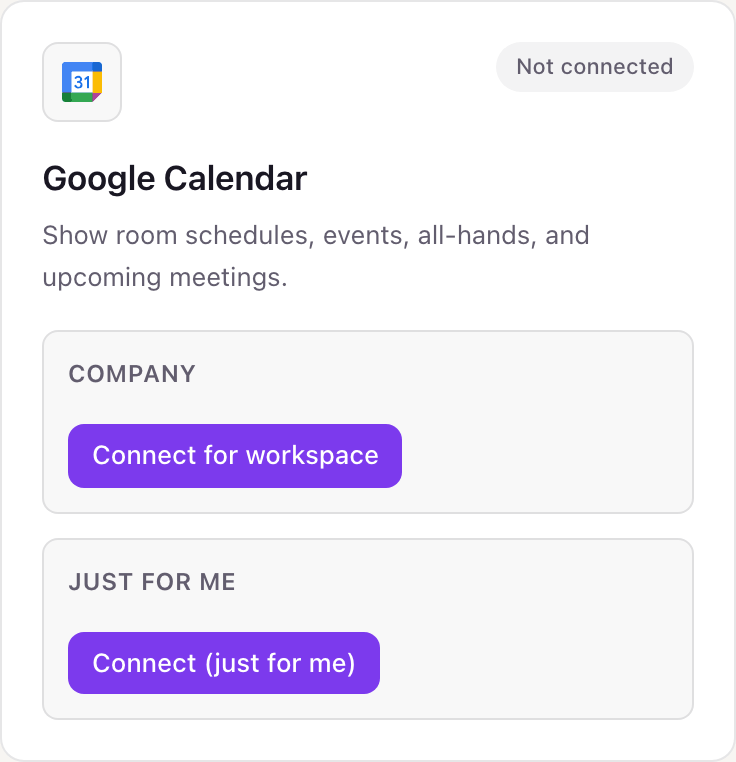
- 1In Dance Party, open Integrations. The Google Calendar card has a Company box with Connect for workspace and a Just for me box with Connect (just for me). Use Company for lobby and room screens, Just for me for your own calendar.
- 2Choose the Google account. Google asks to let Dance Party see and download any calendar you can access using your Google Calendar. Click Continue.
- 3Google sends you back to Dance Party. The Company box now reads Connected by, followed by your name and email. A personal connection reads Connected · only you.
- 4Ask DJ Agent for the calendar by name, for example Big Room or Team Time Off, and assign the widget to a screen.
Your own Google Calendar or the whole workspace
Two kinds of connection sit side by side. An owner or admin connects the company calendar account for shared screens, such as the room schedule by the door or the time-off list in the kitchen. Any member can also connect their own calendar just for them, for a desk display that shows their next meeting. Only that member can build from a personal connection, and the company one is safer for shared screens because it does not depend on one person's account.
Read-only. Dance Party asks Google only for calendar.readonly, which can read calendars and events but cannot create, change or delete them. Remove it in your Google Account under Security, Third-party apps and services, or click Disconnect on the card.
From Google Calendar to your office display
Once Google Calendar shows Connected, the rest happens in plain English. No code, no drag-and-drop.
1. Describe it. Tell DJ Agent what you want to see.
New dashboard+ WidgetDescribe a widget in DJ Agent, or click + WidgetDJ AgentDATA SOURCESGoogle CalendarConnectedShow today's bookings for the Big Room Google Calendar, highlighting what is on now and what is next.Send2. It gets built. The widget lands on your board with real Google Calendar data.
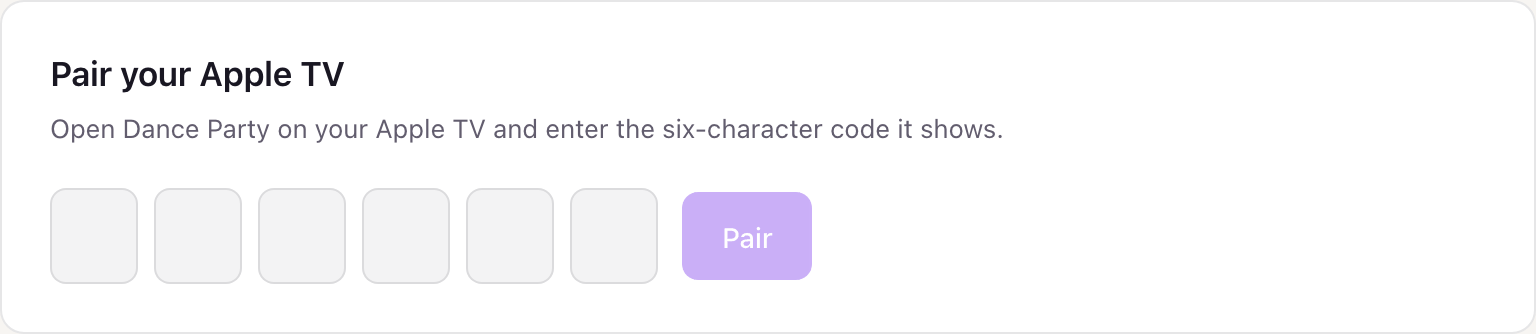
New dashboard+ WidgetBig Room, todayLiveIn useStandupNow until 9:30 a.m.OpenFree9:30 a.m. to 11:30 a.m.BookedCustomer call: Northwind11:30 a.m. to 12:15 p.m.BookedDesign crit2:00 p.m. to 3:00 p.m.DJ AgentDATA SOURCESGoogle CalendarConnectedShow today's bookings for the Big Room Google Calendar, highlighting what is on now and what is next.Send3. Put it on a screen. Pair an Apple TV with the six-character code it shows, then assign the dashboard.
Google Calendar dashboard questions
Can I show a meeting room's Google Calendar on a screen outside the room?
Yes. Add the room's calendar to the Google account you connect, then ask DJ Agent for that room's schedule and assign it to the screen by the door.
Should I use Connect for workspace or Connect (just for me)?
Connect for workspace for anything on a shared screen. Connect (just for me) is for your own calendar, and only you can build widgets from it.
Why do some events show only as busy, without a title?
Google only shares what the connected account can see. If that account has free/busy access to a calendar, events come back without titles, so give it See all event details access.
Does it show recurring meetings?
Yes. Every occurrence of a recurring meeting is listed on its own, in start-time order, so a weekly standup appears on each day it happens.
How far ahead can a Google Calendar widget look?
As far as you ask, up to 250 events per read. A room schedule usually covers today, and a time-off list the next seven days.
Can Dance Party book rooms or accept invites?
No. It uses Google's read-only calendar permission, so it cannot create, move, accept or decline events.
More integrations
Put Google Calendar on every office display
Connect Google Calendar, describe the dashboard, and it runs on an Apple TV, refreshing on its own.
Get Started