
Calendly booking dashboards for Apple TV: today's meetings on the office display
Calendly is how prospects, candidates, and customers get onto your team's calendars, so its booking list is a quiet scoreboard. Dance Party reads your scheduled events and event types and builds a Calendly dashboard for an Apple TV: what is booked today, how many demos landed this week, and what got canceled, on the office display.
- Read-only
- API key connection
- One connection per workspace
Popular Calendly dashboards
What teams running Calendly put on the screen, and what you would ask DJ Agent to get it.
Demo bookings against the weekly goal
For SDRs and the sales manager
For teams that book demos through a Calendly link, a scheduled Product demo is the SDR's finished work. Counting them against the week's target turns the booking page into a scoreboard.
- Active events of your demo event type this week
- Progress toward a weekly target you name
- Demos still to come before Friday
Ask DJ Agent“Count active Calendly events named Product demo scheduled this week and show progress toward a goal of 40.”
Meetings booked per day
For sales, customer success, and whoever staffs the calendar
A week of bookings by day shows where the load lands. If Tuesday holds twice Thursday's meetings, you move availability before people burn out on back-to-back calls.
- Scheduled events per day for the next 7 days
- Total booked for the week
- Split by event type
Ask DJ Agent“Chart active Calendly events per day for the next 7 days, with the week's total as the headline.”
Interview schedule
For recruiting and hiring managers
Recruiters live in Calendly event types like Phone screen and Final round. A screen by the hiring team's desks shows who is interviewing today and in which room or video link.
- Upcoming interview events with start time
- Location: video link type, phone, or office room
- Interviews per event type this week
Ask DJ Agent“List the next 6 Calendly events named Phone screen or Final round, with start time and location.”
Bookings and cancellations
For marketing and team leads
Bookings measure demand. Cancellations measure whether the meeting still felt worth it a day later. Seeing both, per week, catches a rising cancel rate early.
- Active events booked in the last 7 days
- Canceled events in the same window
- Cancel rate and the busiest event type
Ask DJ Agent“For the last 7 days in Calendly, show active events, canceled events, cancel rate, and the event type with the most bookings.”
What Dance Party reads from Calendly
Dance Party reads Calendly with a personal access token. It reads events, their times, and their event types. It does not read invitee names, emails, or form answers.
Scheduled events
Calendly API docs ↗- EventsUp to 100 per read in a start-time window: event name, start and end, active or canceled, location, and invitee count.
- Organization scopeEvents for the whole Calendly organization when the token belongs to an owner or admin. Otherwise the token owner's own events.
Event types
Calendly API docs ↗- Active event typesName, duration, kind (solo or group), and booking link for each.
Account
Calendly API docs ↗- Connected userThe name, time zone, and organization behind the token.
How to connect Calendly
Before you start
- An owner or admin of your Dance Party workspace makes the Calendly connection.
- A Calendly personal access token. New tokens need scopes: tick users:read, scheduled_events:read, and event_types:read.
- An owner or admin role in Calendly for organization-wide events. A member's token shows only that member's own meetings.
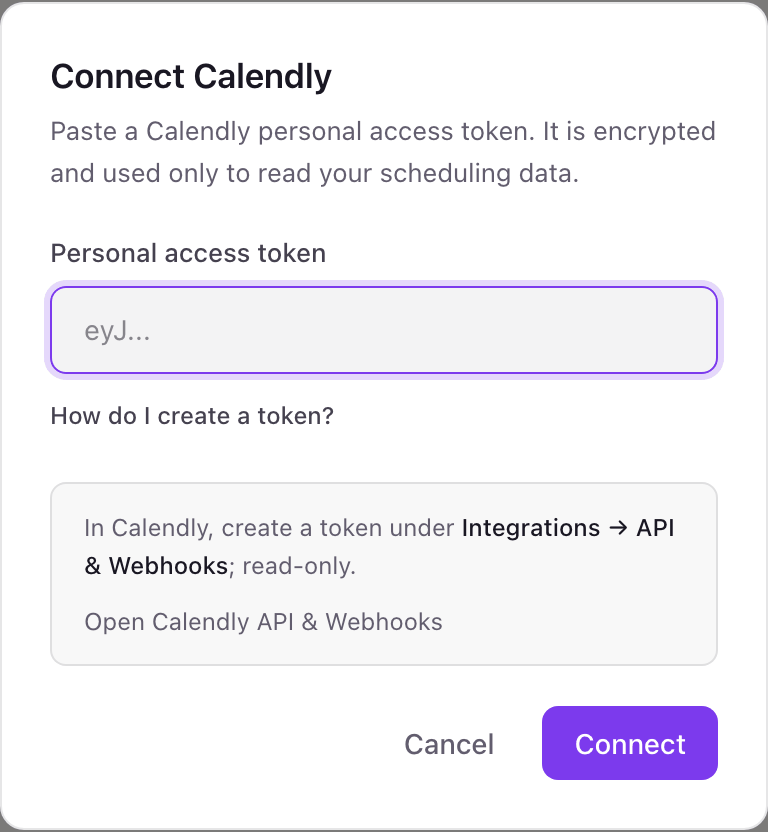
- 1Find Calendly under Integrations in Dance Party and click Connect Calendly. A pop-up asks for a Personal access token.
- 2In Calendly, open Integrations, then API & Webhooks, and click Generate new token (or Get a token now).Open Calendly API & Webhooks ↗
- 3Name it Dance Party, choose the read scopes users:read, scheduled_events:read, and event_types:read, then click Create Token and copy it.
- 4Paste the token into Personal access token and click Connect. Dance Party checks it against your Calendly user, and the card shows Connected.
One Calendly connection per workspace
A workspace connects one Calendly token. From an owner or admin it covers everyone in your Calendly organization, so one connection serves the sales, success, and recruiting screens alike.
With read scopes only, the token cannot book, cancel, or reschedule anything, and Dance Party never asks for invitee details. Revoke it any time under Integrations, API & Webhooks in Calendly.
From Calendly to your office display
Once Calendly shows Connected, the rest happens in plain English. No code, no drag-and-drop.
1. Describe it. Tell DJ Agent what you want to see.
New dashboard+ WidgetDescribe a widget in DJ Agent, or click + WidgetDJ AgentDATA SOURCESCalendlyConnectedCount active Calendly events named Product demo scheduled this week and show progress toward a goal of 40.Send2. It gets built. The widget lands on your board with real Calendly data.
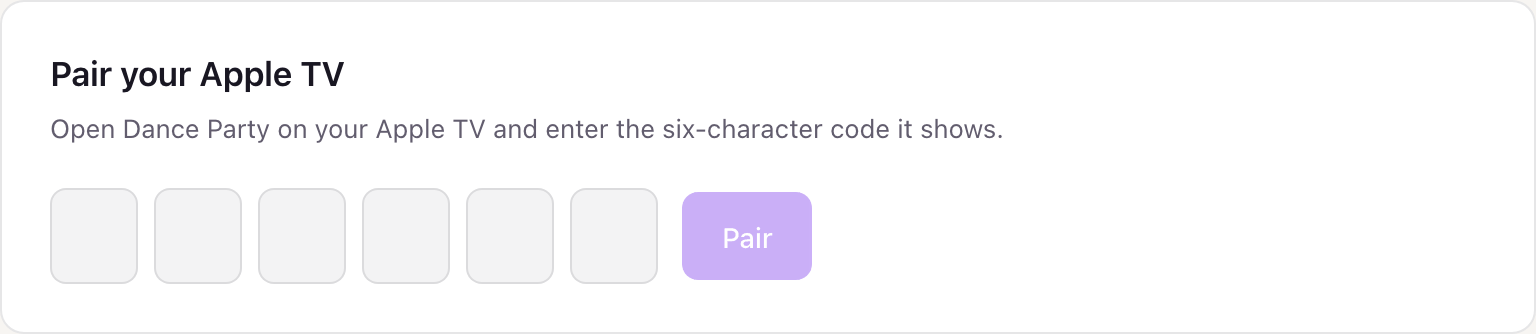
New dashboard+ WidgetDemos booked this weekLiveProduct demo, active31/ 4078% to goalDJ AgentDATA SOURCESCalendlyConnectedCount active Calendly events named Product demo scheduled this week and show progress toward a goal of 40.Send3. Put it on a screen. Pair an Apple TV with the six-character code it shows, then assign the dashboard.
Calendly dashboard questions
Can I show Calendly bookings on a TV in the office?
Yes. Connect Calendly with a personal access token, tell DJ Agent what to show, and assign it to an Apple TV running Dance Party. Calendly boards pull new bookings hourly by default, and you can shorten that to 5 minutes.
Will invitee names or emails appear on the screen?
No. Dance Party reads the event name, time, location, and how many invitees there are, never who they are.
Can it show meetings for our whole team, not just me?
Yes, if the token comes from a Calendly owner or admin. Then Dance Party reads events across the organization. A member's token shows only that person's meetings.
Which scopes does the Calendly token need?
Three read scopes: users:read, scheduled_events:read, and event_types:read. Calendly gives a new token no access until you choose scopes, and Dance Party needs nothing that writes.
Can it rank reps by meetings booked?
Not today. Dance Party reads events without their hosts, so it can count by event type or day but not by person.
Can Dance Party book or cancel Calendly meetings?
No. It only reads scheduled events and event types. It cannot create, cancel, or reschedule a booking.
More integrations
Put Calendly on every office display
Connect Calendly, describe the dashboard, and it runs on an Apple TV, refreshing on its own.
Get Started