
Jira sprint and bug dashboards on Apple TV, for the team's office display
Jira dashboards are built from gadgets and JQL filters, and they usually sit in a browser tab only the Scrum Master opens. Dance Party runs the same JQL and puts the answer on an Apple TV dashboard for the team's office display: the active sprint by status, open bugs by priority, and how close the next release is to done.
- Read-only
- API key connection
- One connection per workspace
Popular Jira dashboards
What teams running Jira put on the screen, and what you would ask DJ Agent to get it.
Active sprint progress
For the Scrum team and its product owner
Standup runs better when the board is already on the wall. Issues done out of everything in the open sprint, next to what is stuck In Review, shows by Wednesday whether the sprint goal is realistic.
- Issues in open sprints, counted by status
- Issues done out of the sprint total
- Issues flagged or marked Blocked in the sprint
Ask DJ Agent“For Jira project WEB, show issues in the open sprint done versus total, and count issues in each status.”
Open bugs by priority
For engineering, QA, and support leads
The bug count only matters by priority. A tile each for Highest, High, Medium, and Low puts the two Highest bugs in front of the whole team instead of in a triage meeting.
- Unresolved bugs at each priority
- Bugs created in the last 7 days
- Bugs resolved in the last 7 days
Ask DJ Agent“Count unresolved Jira bugs in projects WEB and API by priority, one tile each, red for Highest.”
Release readiness by fix version
For product managers and release managers
Everyone asks when the release ships. Issues done out of the total for each unreleased fix version answers it without a status meeting, and a version stuck at 60 percent is visible a week early.
- Issues done versus total for each unreleased fix version
- Issues still To Do in the nearest version
- Unresolved bugs tagged to the version
Ask DJ Agent“For each unreleased Jira fix version in WEB, show issues done out of total as a bar, closest release first.”
Done today
For the team and anyone walking past
A sprint is a pile of small wins that nobody announces. Issues moved to Done today, with their key and summary, show progress as it happens and give the person who closed a long-running ticket some credit.
- Issues resolved today, newest first
- Issue key, summary, and assignee
- Count of issues resolved this week
Ask DJ Agent“List Jira issues resolved today in WEB and API with key, summary, and assignee, newest first.”
What Dance Party reads from Jira
Dance Party reads Jira Cloud through its REST API with your Atlassian email and API token. Every widget is a JQL query, so anything you can filter in Jira you can count or list on a screen. The token sees only the projects its user can browse.
Issue search
Jira API docs ↗- Issues by JQLIssues matching any JQL, with the fields you choose: summary, status, assignee, priority, sprint, fix version, dates.
- Issue countsHow many issues match a JQL query, using Jira's approximate count, one number per tile.
Projects
Jira API docs ↗- ProjectsThe projects the token's user can see, with keys and names.
- Connected userWhich Atlassian account the token belongs to.
How to connect Jira
Before you start
- An owner or admin of your Dance Party workspace makes the Jira connection.
- Jira Cloud, on a site like acme.atlassian.net
- An Atlassian account with Browse Projects permission on the projects you want to show. A dedicated service user keeps the dashboard off one person's account.
- A standard Atlassian API token. It expires in 1 to 365 days, a year by default.
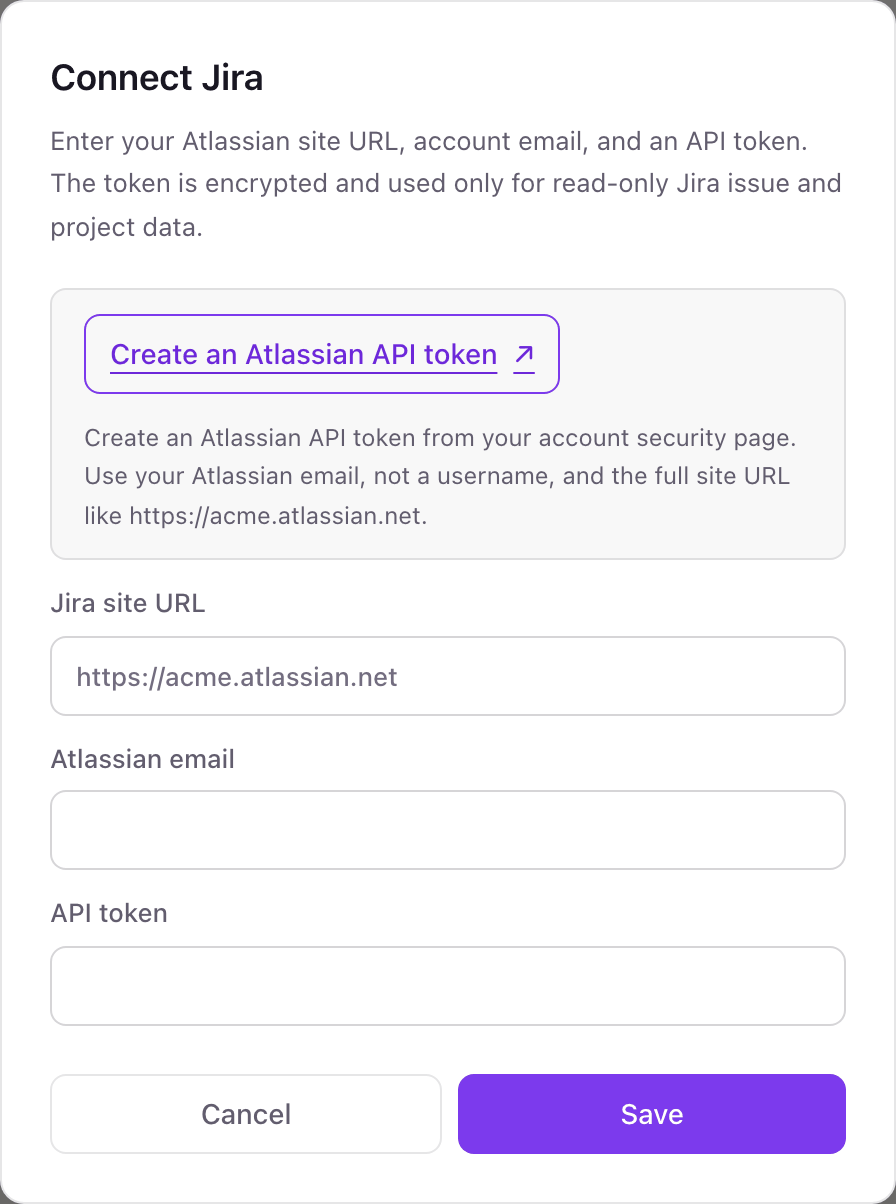
- 1From Integrations in Dance Party, click Connect Jira.
- 2Click Create an Atlassian API token. On your Atlassian account's API tokens page, select Create API token, name it Dance Party, pick an expiry date, and click Create.Create an Atlassian API token ↗
- 3Copy the token. Use the standard token, not the scoped one, because Dance Party calls your site URL directly.
- 4Fill Jira site URL (the full https address), Atlassian email (not a username), and API token.
- 5Click Save. The Jira card shows Connected.
One Jira connection per workspace
A workspace connects one Jira Cloud site with one token, and every project that token's user can browse is available to your dashboards. A second Atlassian site needs a second Dance Party workspace.
Dance Party only sends read requests with this token: project lists, issue search, and counts. An Atlassian API token carries its user's permissions, so a user who can only browse keeps it read-only in practice. Revoke it any time on the Atlassian API tokens page.
From Jira to your office display
Once Jira shows Connected, the rest happens in plain English. No code, no drag-and-drop.
1. Describe it. Tell DJ Agent what you want to see.
New dashboard+ WidgetDescribe a widget in DJ Agent, or click + WidgetDJ AgentDATA SOURCESJiraConnectedFor Jira project WEB, show issues in the open sprint done versus total, and count issues in each status.Send2. It gets built. The widget lands on your board with real Jira data.
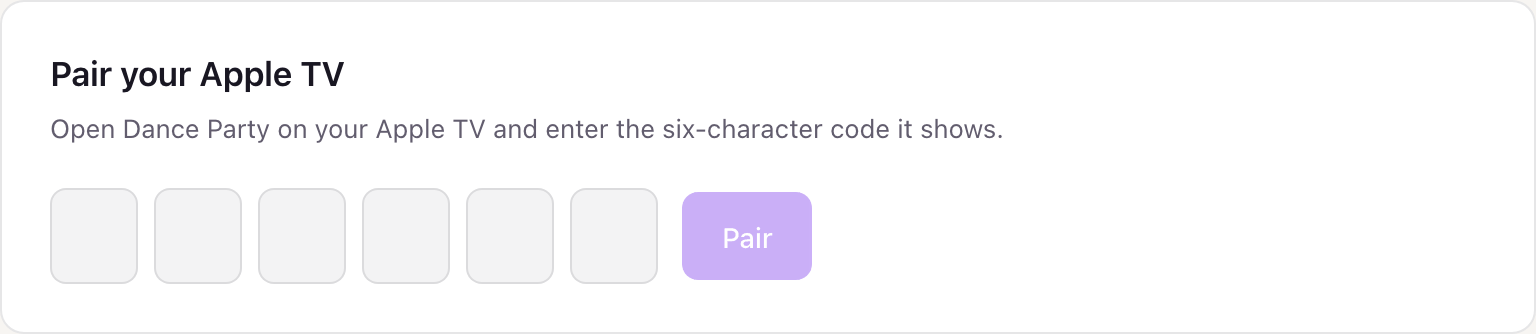
New dashboard+ WidgetSprint 42 doneLiveIssues in Done, open sprint23/ 5443% to goalDJ AgentDATA SOURCESJiraConnectedFor Jira project WEB, show issues in the open sprint done versus total, and count issues in each status.Send3. Put it on a screen. Pair an Apple TV with the six-character code it shows, then assign the dashboard.
Jira dashboard questions
Can a Jira board run on an Apple TV in the team area?
Yes. Connect Jira Cloud with an API token, describe the board in plain English or paste your JQL, and assign it to an Apple TV running Dance Party.
Can I use my existing JQL filters?
Yes. Paste the JQL from a saved filter into your request to DJ Agent, and the widget counts or lists exactly those issues.
Does it work with Jira Data Center or Server?
No. Dance Party connects to Jira Cloud with an Atlassian email and API token, which self-managed Jira does not use.
Can it show a sprint burndown or velocity chart?
Not the Jira report itself. Dance Party reads issues and counts through JQL, so it shows sprint status and issues done, but not the burndown history Jira's agile reports keep.
Why did my Jira widgets stop refreshing?
Most often the API token expired. Atlassian tokens last at most a year, so create a new one and reconnect Jira from the Integrations page.
Can Dance Party change Jira issues?
No. It only searches and counts. It cannot transition, assign, comment on, or create an issue.
More integrations
Put Jira on every office display
Connect Jira, describe the dashboard, and it runs on an Apple TV, refreshing on its own.
Get Started